 auri.ee
keyboard stuff
1# Hand-Wiring Guide
2
3## Parts list
4
5You will need: (where *x* is the number of keys on your planned keyboard)
6
7* QMK compatible microcontroller board (Teensy, Pro-Micro, QMK Proton C etc.)
8* *x* keyswitches (MX, Matias, Gateron, etc)
9* *x* through hole diodes
10* Keyboard plate and plate mount stabilisers
11* Wire
12* Soldering iron
13* Rosin-cored solder
14* Adequate ventilation/a fan
15* Wire cutters/snippers
16
17Optional but useful:
18
19* Wire strippers/a sharp knife
20* Tweezers and/or small needle nose pliers
21* Soldering station/Helping hands
22
23## Starting the build
24
25There are many ways to hand wire a PCB matrix, this guide will describe the fundamentals as well as some recommended ways to go about it.
26
27As we are dealing with hand wiring, it is assumed that you already have a plate. If you are planning a completely custom layout, tools such as [ai03 Plate Generator](https://kbplate.ai03.me/) and [Swillkb Plate & Case Builder](http://builder.swillkb.com/) can help when designing one.
28
29Start by installing the switches and stabilisers in the plate. Depending on the thickness and material this may also involve hot gluing it in place.
30
31## Planning the matrix
32
33If you are following a pre-existing handwire guide (e.g. for the keyboards in the [handwire firmware section](https://github.com/qmk/qmk_firmware/tree/master/keyboards/handwired) you can skip this step, just ensure you wire the matrix as described.
34
35What you want to achieve is one leg from each switch being attached to the corresponding switches next to it (rows) and the other leg being attached to the switches above and below it (columns) and a diode to one of the legs, mosy commonly this will be the leg attached to the rows, and the diode will face away from it (Column to Row) i.e. with the wire furthest from the black line on the diode connected to the switch (as current will only travel in one direction through a diode).
36
37It is fairly simple to plan for an ortholinear keyboard (like a Planck).
38
39
40Image from [RoastPotatoes' "How to hand wire a Planck"](https://blog.roastpotatoes.co/guide/2015/11/04/how-to-handwire-a-planck/)
41
42But the larger and more complicated your keyboard, the more complex the matrix. [Keyboard Firmware Builder](https://kbfirmware.com/) can help you plan your matrix layout (shown here with a basic fullsize ISO keyboard imported from [Keyboard Layout Editor](https://www.keyboard-layout-editor.com).
43
44
45
46Bear in mind that the number of rows plus the number of columns can not exceed the number of I/O pins on your controller. So the fullsize matrix shown above would be possible on a Proton C or Teensy++, but not on a regular Teensy or Pro Micro.
47
48### Common Microcontroller Boards
49
50| Board | Controller | # I/O | Pinout |
51| :------------ |:-------------:| ------:| ------ |
52| Pro Micro* | ATmega32u4 | 20 | [link](https://learn.sparkfun.com/tutorials/pro-micro--fio-v3-hookup-guide/hardware-overview-pro-micro#Teensy++_2.0) |
53| Teensy 2.0 | ATmega32u4 | 25 | [link](https://www.pjrc.com/teensy/pinout.html) |
54| [QMK Proton C](https://qmk.fm/proton-c/) | STM32F303xC | 36 | [link 1](https://qmk.fm/proton-c-pinout.jpg), [2](https://deskthority.net/wiki/QMK_Proton_C) |
55| Teensy++ 2.0 | AT90USB1286 | 46 | [link](https://www.pjrc.com/teensy/pinout.html#Teensy_2.0) |
56
57*Elite C is essentially the same as a Pro Micro with a USB-C instead of Micro-USB
58
59There are also a number of boards designed specifically for handwiring that mount directly to a small number of switches and offer pinouts for the rest. Though these are generally more expensive and may be more difficult to get hold of.
60
61<img src="/QiA3ta6.jpg" alt="Postage board mini mounted in place" width="500"/>
62
63| Board | Controller | # I/O |
64| :------------ |:-------------:| ------:|
65| [Swiss helper](https://www.reddit.com/r/MechanicalKeyboards/comments/8jg5d6/hand_wiring_this_might_help/) | ATmega32u4 | 20 |
66| [Postage board](https://github.com/LifeIsOnTheWire/Postage-Board/)| ATmega32u4| 25 |
67| [Postage board mini](https://geekhack.org/index.php?topic=101460.0)| ATmega32u4| 25 |
68
69## Wiring the matrix
70
71There is no one right way to do this. What you want to achieve is good connection at all of the joints planned and no unintentional shorts.
72
73Established materials and techniques include:
74
75| Technique | Examples | Pros | Cons | Image
76| :-----------| :------- | :------ | :--- | :---
77| Lengths of wire with stripped segments | [Sasha Solomon's Dactyl](https://medium.com/@sachee/building-my-first-keyboard-and-you-can-too-512c0f8a4c5f) and [Cribbit's modern hand wire](https://geekhack.org/index.php?topic=87689.0) | Neat and tidy | Some effort in stripping the wire | 
78| Short lengths of wire | [u/xicolinguada's ortho build](https://www.reddit.com/r/MechanicalKeyboards/comments/c39k4f/my_first_hand_wired_keyboard_its_not_perfect_but/) | Easier to strip the wire | More difficult to place | 
79| Magnet/Enamelled wire | [fknraiden's custom board](https://geekhack.org/index.php?topic=74223.0) | Can be directly soldered onto (insulation burns off with heat) | Appearance? | 
80| Bending the legs of the diodes for the rows | [Matt3o's Brownfox](https://deskthority.net/viewtopic.php?f=7&t=6050) | Fewer solder joints required | Uninsulated | 
81| Using rigid wiring (e.g. brass tube) | [u/d_stilgar's invisible hardline](https://www.reddit.com/r/MechanicalKeyboards/comments/8aw5j2/invisible_hardline_keyboard_progress_update_april/) and [u/jonasfasler's first attempt](https://www.reddit.com/r/MechanicalKeyboards/comments/de1jyv/my_first_attempt_at_handwiring_a_keyboard/) | Very pretty | More difficult. No physical insulation | 
82| Bare wire with insulation added after (e.g. kapton tape) | [Matt3o's 65% on his website](https://matt3o.com/hand-wiring-a-custom-keyboard/) | Easier (no wire stripping required) | Not as attractive | 
83| Copper tape | [ManuForm Dactyl](https://github.com/tshort/dactyl-keyboard) | Very easy | Only really works when your plate/case aligns with the bottom of your switches | 
84
85
86Note that these methods can be combined. Prepare your lengths of wire before moving on to soldering.
87
88
89### A note on split keyboards
90
91If you are planning a split keyboard (e.g. Dactyl) each half will require a controller and a means of communicating between them (like a TRRS or hardwired cable). Further information can be found in the [QMK split keyboard documentation.](features/split_keyboard)
92
93
94### Soldering
95
96There are a lot of soldering guides and tips available elsewhere but here are some of the most useful and relevant for hand wiring:
97
98To ensure a strong solder joint you want a good amount of contact between the solder and the two pieces of metal you are connecting. A good way of doing this (though not required) is looping around pins or twisting wires together before applying solder.
99
100<img src="/eHJjmnU.jpg" alt="Looped around rod" width="400"/>
101
102If your diodes are on a packaging strip and need a bend in them (either the start of a loop or for connecting to its neighbour) this can easily done by bending it over something straight like the edge of a box, table, or ruler. This also helps keep track of the direction of the diode as all the bends will be on the same side.
103
104<img src="/oITudbX.jpg" alt="Bent diode legs" width="400"/>
105
106If your iron has temperature control, set it to 315ºC (600ºF).
107
108Once heated, tin your soldering iron - this means melting a small amount of solder on the end of the iron and then quickly wiping it off on a wet sponge or wire cleaning pad, leaving a shiny silvery coating on the end which helps keep oxidisation at bay and helps solder to flow.
109
110When you come to apply the solder, hold the soldering iron against the two surfaces for a second to heat it, then apply a small amount of solder to join the two pieces together. Heating the surfaces ensures that the solder adheres to it and that it does not cool too quickly.
111
112Don't hold the iron on the solder/joint longer than necessary. Heat will be conducted through the surfaces and can damage components (melt switch housings etc.). Also, solder contains flux, which aids in ["wetting"](https://en.m.wikipedia.org/wiki/Wetting). The longer heat is applied to the solder the more flux will evaporate meaning you may end up with a bad solder joint with peaks which, apart from looking bad, may also increase the risk of electrical shorts.
113
114#### Soldering the Diodes
115
116Starting at the top-left switch, place the diode (with tweezers if you have them) on the switch so that the diode itself is vertically aligned, and the black line is facing toward you. Make sure the diodes are soldered in parallel (diode outputs shouldn't connect to diode inputs). The input lead of the diode should be touching the left contact on the switch, and the bent, output end should be facing to the right and resting on the switch there, like this:
117
118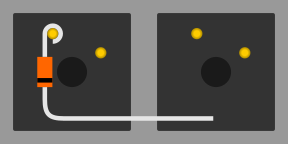
119
120Letting the diode rest, grab your solder, and touch both it and the soldering iron to the left contact at the same time - the rosin in the solder should make it easy for the solder to flow over both the diode and the keyswitch contact. The diode may move a little, and if it does, carefully position it back it place by grabbing the bent end of the diode - the other end will become hot very quickly. If you find that it's moving too much, using needle-nose pliers of some sort may help to keep the diode still when soldering.
121
122The smoke that the rosin releases is harmful, so be careful not to breath it or get it in your eyes/face.
123
124After soldering things in place, it may be helpful to blow on the joint to push the smoke away from your face, and cool the solder quicker. You should see the solder develop a matte (not shiny) surface as it solidifies. Keep in mind that it will still be very hot afterwards, and will take a couple minutes to be cool to touch. Blowing on it will accelerate this process.
125
126When the first diode is complete, the next one will need to be soldered to both the keyswitch, and the previous diode at the new elbow. That will look something like this:
127
128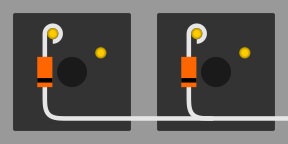
129
130After completing a row, use the wire cutters to trim the excess wire from the tops of the diodes, and from the right side on the final switch. This process will need to completed for each row you have.
131
132When all of the diodes are completely soldered, it's a good idea to quickly inspect each one to ensure that your solder joints are solid and sturdy - repairing things after this is possible, but more difficult.
133
134#### Soldering the Columns
135
136You'll have some options in the next process - it's a good idea to insulate the column wires (since the diodes aren't), but if you're careful enough, you can use exposed wires for the columns - it's not recommended, though. If you're using single-cored wire, stripping the plastic off of the whole wire and feeding it back on is probably the best option, but can be difficult depending on the size and materials. You'll want to leave parts of the wire exposed where you're going to be solder it onto the keyswitch.
137
138If you're using stranded wire, it's probably easiest to just use a lot of small wires to connect each keyswitch along the column. It's possible to use one and melt through the insulation, but this isn't recommended, will produce even more harmful fumes, and can ruin your soldering iron.
139
140Before beginning to solder, it helps to have your wire pre-bent (if using single-cored), or at least have an idea of how you're going to route the column (especially if you're making a staggered board). Where you go in particular doesn't matter too much, as we'll be basing our keymap definitions on how it was wired - just make sure every key in a particular row is in a unique column, and that they're in order from left to right.
141
142If you're not using any insulation, you can try to keep the column wires elevated, and solder them near the tips of the keyswitch contacts - if the wires are sturdy enough, they won't short out to the row wiring an diodes.
143
144## Wiring up the controller
145
146Now that the matrix itself is complete, it's time to connect what you've done to the microcontroller board.
147
148Place the microcontroller where you want it to be located, give thought to mounting and case alignment. Bear in mind that the location of the USB socket can be different from the controller by using a short male to female cable if required,.
149
150Find the pinout/documentation for your microcontroller board ([links here](#common-microcontroller-boards)) and make a note of all the digital I/O pins on it (note that on some controllers, like the teensy, analogue I/O can double as digital) as these are the pins you want to connect your wires to.
151
152----
153
154### Specific instructions for the Teensy 2.0
155
156There are some pins on the Teensy that are special, like D6 (the LED on the chip), or some of the UART, SPI, I2C, or PWM channels, but only avoid those if you're planning something in addition to a keyboard. If you're unsure about wanting to add something later, you should have enough pins in total to avoid a couple.
157
158The pins you'll absolutely have to avoid, as with any controller, are: GND, VCC, AREF, and RST - all the others are usable and accessible in the firmware.
159
160----
161
162
163Cut wires to the length of the distance from the a point on each column/row to the controller. You can solder anywhere along the row, as long as it's after the diode - soldering before the diode (on the keyswitch side) will cause that row not to work.
164
165Ribbon cable can be used to keep this extra tidy. You may also want to consider routing the wires beneath the existing columns/rows.
166
167<img src="/z2QlKfB.jpg" alt="Ribbon Cable" width="600"/>
168
169As you solder the wires to the controller make a note of which row/column is going to which pin on the controller as we'll use this data to setup the matrix when we create the firmware.
170
171As you move along, be sure that the controller is staying in place - recutting and soldering the wires is a pain!
172
173
174## Getting Some Basic Firmware Set Up
175
176From here, you should have a working keyboard once you program a firmware.
177
178Simple firmware can be created easily using the [Keyboard Firmware Builder](https://kbfirmware.com/) website. Recreate your layout using [Keyboard Layout Editor](https://www.keyboard-layout-editor.com), import it and recreate the matrix (if not already done as part of [planning the matrix](#planning-the-matrix)).
179
180Go through the rest of the tabs, assigning keys until you get to the last one where you can compile and download your firmware. The .hex file can be flashed straight onto your keyboard, or for advanced functionality, compiled locally after [Setting up Your Environment](newbs_getting_started).
181
182The source given by Keyboard Firmware Builder is QMK, but is based on a version of QMK from early 2017. To compile the firmware in a modern version of QMK Firmware, you'll need to export via the `Save Configuration` button, then run:
183
184```
185qmk import-kbfirmware /path/to/export.json
186```
187
188For example:
189
190```
191$ qmk import-kbfirmware ~/Downloads/gh62.json
192Ψ Importing gh62.json.
193
194⚠ Support here is basic - Consider using 'qmk new-keyboard' instead
195Ψ Imported a new keyboard named gh62.
196Ψ To start working on things, `cd` into keyboards/gh62,
197Ψ or open the directory in your preferred text editor.
198Ψ And build with qmk compile -kb gh62 -km default.
199```
200
201
202## Flashing the Firmware
203
204Install [QMK Toolbox](https://github.com/qmk/qmk_toolbox).
205
206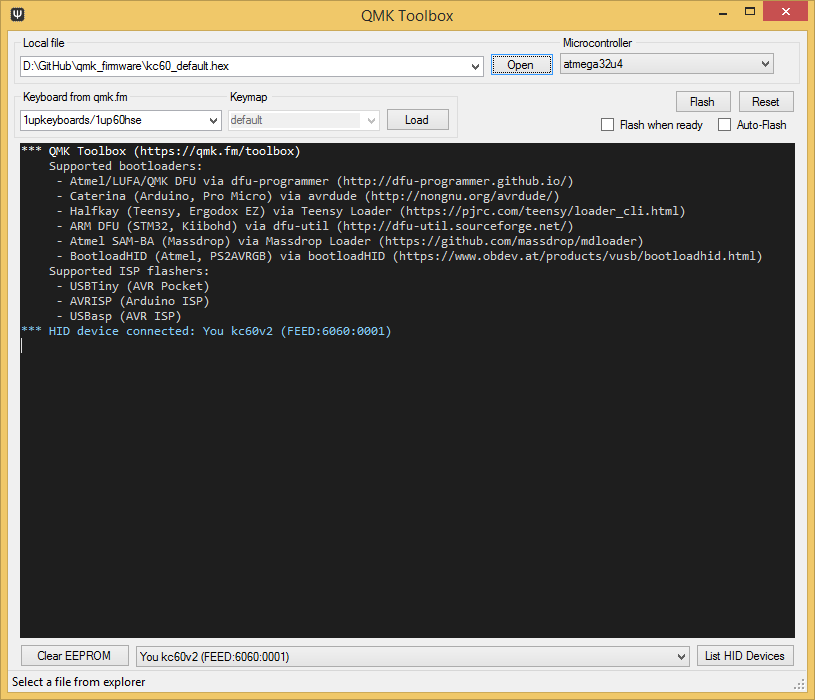
207
208Under "Local File" navigate to your newly created .hex file. Under "Microcontroller", select the corresponding one for your controller board (common ones available [here](#common-microcontroller-boards)).
209
210Plug in your keyboard and press the reset button (or short the Reset and Ground pins if there is no button) and click the "Flash" button in QMK toolbox.
211
212
213## Testing Your Firmware
214
215Use a website such as [QMK Configurator's Keyboard Tester](https://config.qmk.fm/#/test), [Keyboard Tester](https://www.keyboardtester.com/tester.html), or [Keyboard Checker](https://keyboardchecker.com/) or just open a text editor and try typing - you should get the characters that you put into your keymap. Test each key, and make a note of the ones that aren't working. Here's a quick trouble-shooting guide for non-working keys:
216
2171. Flip the keyboard back over and short the keyswitch's contacts with a piece wire - this will eliminate the possibility of the keyswitch being bad and needing to be replaced.
2182. Check the solder points on the keyswitch - these need to be plump and whole. If you touch it with a moderate amount of force and it comes apart, it's not strong enough.
2193. Check the solder joints on the diode - if the diode is loose, part of your row may register, while the other may not.
2204. Check the solder joints on the columns - if your column wiring is loose, part or all of the column may not work.
2215. Check the solder joints on both sides of the wires going to/from the Teensy - the wires need to be fully soldered and connect to both sides.
2226. Check the `<project_name>.h` file for errors and incorrectly placed `KC_NO`s - if you're unsure where they should be, instead duplicate a k*xy* variable.
2237. Check to make sure you actually compiled the firmware and flashed the Teensy correctly. Unless you got error messages in the terminal, or a pop-up during flashing, you probably did everything correctly.
2248. Use a multimeter to check that the switch is actually closing when actuated (completing the circuit when pressed down).
225
226If you've done all of these things, keep in mind that sometimes you might have had multiple things affecting the keyswitch, so it doesn't hurt to test the keyswitch by shorting it out at the end.
227
228## Finishing up
229
230Once you have confirmed that the keyboard is working, if you have used a separate (non handwire specific) controller you will want to secure it in place. This can be done in many different ways e.g. hot glue, double sided sticky tape, 3D printed caddy, electrical tape.
231
232If you found this fulfilling you could experiment by adding additional features such as [in switch LEDs](https://geekhack.org/index.php?topic=94258.0), [in switch RGB](https://www.reddit.com/r/MechanicalKeyboards/comments/5s1l5u/photoskeyboard_science_i_made_a_handwired_rgb/), [RGB underglow](https://medium.com/@DavidNZ/hand-wired-custom-keyboard-cdd14429c7b3#.7a1ovebsk) or even an [OLED display!](https://www.reddit.com/r/olkb/comments/5zy7og/adding_ssd1306_oled_display_to_your_build/)
233
234There are a lot of possibilities inside the firmware - explore [the documentation](/) for a full feature list, and dive into the different keyboards to see how people use all of them. You can always stop by [the OLKB subreddit](https://reddit.com/r/olkb) or [QMK Discord](https://discord.gg/qmk) for help!
235
236## Links to Other Guides
237
238- [matt3o's step by step guide (BrownFox build)](https://deskthority.net/viewtopic.php?f=7&t=6050) also his [website](https://matt3o.com/hand-wiring-a-custom-keyboard/) and [video guide](https://www.youtube.com/watch?v=LVzpsjFWPP4)
239- [Cribbit's "Modern hand wiring guide - stronger, cleaner, easier"](https://geekhack.org/index.php?topic=87689.0)
240- [Sasha Solomon's "Building my first Keyboard"](https://medium.com/@sachee/building-my-first-keyboard-and-you-can-too-512c0f8a4c5f)
241- [RoastPotatoes' "How to hand wire a Planck"](https://blog.roastpotatoes.co/guide/2015/11/04/how-to-handwire-a-planck/)
242- [Masterzen's "Handwired keyboard build log"](https://www.masterzen.fr/2018/12/16/handwired-keyboard-build-log-part-1/)
243
244
245# Legacy Content
246
247This page used to include more content. We have moved a section that used to be part of this page its own page. Everything below this point is simply a redirect so that people following old links on the web find what they're looking for.
248
249## Preamble: How a Keyboard Matrix Works (and why we need diodes) {#preamble-how-a-keyboard-matrix-works-and-why-we-need-diodes}
250
251* [How a Keyboard Matrix Works](how_a_matrix_works)