 auri.ee
keyboard stuff
1# RGB Lighting
2
3QMK has the ability to control RGB LEDs attached to your keyboard. This is commonly called *underglow*, due to the LEDs often being mounted on the bottom of the keyboard, producing a nice diffused effect when combined with a translucent case.
4
5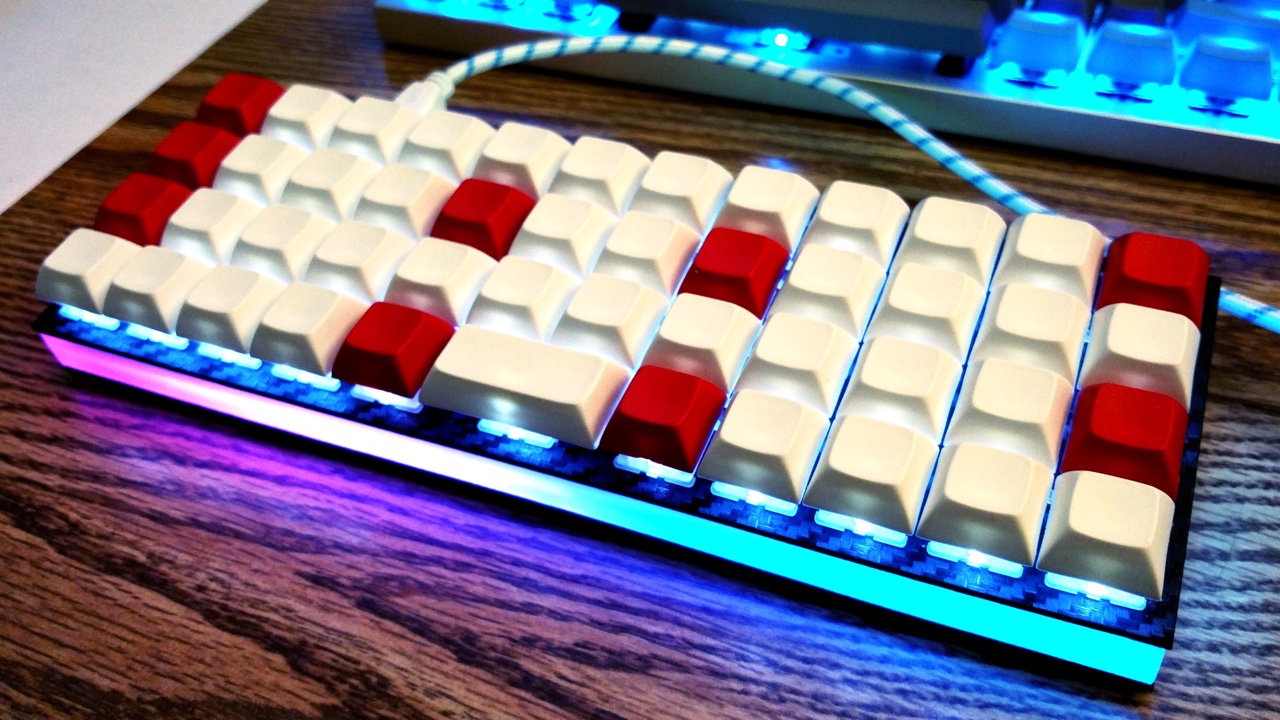
6
7Some keyboards come with RGB LEDs preinstalled. Others must have them installed after the fact. See the [Hardware Modification](#hardware-modification) section for information on adding RGB lighting to your keyboard.
8
9Currently QMK supports the following addressable LEDs:
10
11 * WS2811, WS2812, WS2812B, WS2812C, etc.
12 * SK6812, SK6812MINI, SK6805
13 * APA102
14
15These LEDs are called "addressable" because instead of using a wire per color, each LED contains a small microchip that understands a special protocol sent over a single wire. The chip passes on the remaining data to the next LED, allowing them to be chained together. In this way, you can easily control the color of the individual LEDs.
16
17## Usage
18
19On keyboards with onboard RGB LEDs, it is usually enabled by default. If it is not working for you, check that your `rules.mk` includes the following:
20
21```make
22RGBLIGHT_ENABLE = yes
23```
24
25::: tip
26There are additional configuration options for ARM controllers that offer increased performance over the default WS2812 bitbang driver. Please see [WS2812 Driver](../drivers/ws2812) for more information.
27:::
28
29For APA102 LEDs, add the following to your `rules.mk`:
30
31```make
32RGBLIGHT_ENABLE = yes
33RGBLIGHT_DRIVER = apa102
34```
35
36At minimum you must define the data pin your LED strip is connected to, and the number of LEDs in the strip, in your `config.h`. For APA102 LEDs, you must also define the clock pin. If your keyboard has onboard RGB LEDs, and you are simply creating a keymap, you usually won't need to modify these.
37
38|Define |Description |
39|--------------------|-------------------------------------------------------------------------|
40|`WS2812_DI_PIN` |The pin connected to the data pin of the LEDs (WS2812) |
41|`APA102_DI_PIN` |The pin connected to the data pin of the LEDs (APA102) |
42|`APA102_CI_PIN` |The pin connected to the clock pin of the LEDs (APA102) |
43|`RGBLIGHT_LED_COUNT`|The number of LEDs connected |
44|`RGBLED_SPLIT` |(Optional) For split keyboards, the number of LEDs connected on each half|
45
46Then you should be able to use the keycodes below to change the RGB lighting to your liking.
47
48### Color Selection
49
50QMK uses [Hue, Saturation, and Value](https://en.wikipedia.org/wiki/HSL_and_HSV) to select colors rather than RGB. The color wheel below demonstrates how this works.
51
52<img src="../public/color-wheel.svg" alt="HSV Color Wheel" width="250"/>
53
54Changing the **Hue** cycles around the circle.<br>
55Changing the **Saturation** moves between the inner and outer sections of the wheel, affecting the intensity of the color.<br>
56Changing the **Value** sets the overall brightness.<br>
57
58
59
60## Keycodes
61
62::: warning
63These keycodes also simultaneously control [RGB Matrix](rgb_matrix), if enabled. This behaviour is in the process of being deprecated, so during this time it is recommended to additionally include the dedicated RGB Matrix keycodes to your keymap, and add `#define RGB_MATRIX_DISABLE_SHARED_KEYCODES` to `config.h`.
64:::
65
66|Key |Aliases |Description |
67|------------------------------|----------|---------------------------------------------------------------------|
68|`QK_UNDERGLOW_TOGGLE` |`UG_TOGG` |Toggle RGB lighting on or off |
69|`QK_UNDERGLOW_MODE_NEXT` |`UG_NEXT` |Cycle through modes, reverse direction when Shift is held |
70|`QK_UNDERGLOW_MODE_PREVIOUS` |`UG_PREV` |Cycle through modes in reverse, forward direction when Shift is held |
71|`QK_UNDERGLOW_HUE_UP` |`UG_HUEU` |Increase hue, decrease hue when Shift is held |
72|`QK_UNDERGLOW_HUE_DOWN` |`UG_HUED` |Decrease hue, increase hue when Shift is held |
73|`QK_UNDERGLOW_SATURATION_UP` |`UG_SATU` |Increase saturation, decrease saturation when Shift is held |
74|`QK_UNDERGLOW_SATURATION_DOWN`|`UG_SATD` |Decrease saturation, increase saturation when Shift is held |
75|`QK_UNDERGLOW_VALUE_UP` |`UG_VALU` |Increase value (brightness), decrease value when Shift is held |
76|`QK_UNDERGLOW_VALUE_DOWN` |`UG_VALD` |Decrease value (brightness), increase value when Shift is held |
77|`QK_UNDERGLOW_SPEED_UP` |`UG_SPDU` |Increase effect speed (brightness), decrease speed when Shift is held|
78|`QK_UNDERGLOW_SPEED_DOWN` |`UG_SPDD` |Decrease effect speed (brightness), increase speed when Shift is held|
79|`RGB_MODE_PLAIN` |`RGB_M_P `|Static (no animation) mode (deprecated) |
80|`RGB_MODE_BREATHE` |`RGB_M_B` |Breathing animation mode (deprecated) |
81|`RGB_MODE_RAINBOW` |`RGB_M_R` |Rainbow animation mode (deprecated) |
82|`RGB_MODE_SWIRL` |`RGB_M_SW`|Swirl animation mode (deprecated) |
83|`RGB_MODE_SNAKE` |`RGB_M_SN`|Snake animation mode (deprecated) |
84|`RGB_MODE_KNIGHT` |`RGB_M_K` |"Knight Rider" animation mode (deprecated) |
85|`RGB_MODE_XMAS` |`RGB_M_X` |Christmas animation mode (deprecated) |
86|`RGB_MODE_GRADIENT` |`RGB_M_G` |Static gradient animation mode (deprecated) |
87|`RGB_MODE_RGBTEST` |`RGB_M_T` |Red, Green, Blue test animation mode (deprecated) |
88|`RGB_MODE_TWINKLE` |`RGB_M_TW`|Twinkle animation mode (deprecated) |
89
90::: tip
91These keycodes cannot be used with functions like `tap_code16()` as they are not USB HID keycodes. If you wish to replicate similar behaviour in custom code within your firmware (e.g. inside `encoder_update_user()` or `process_record_user()`), the equivalent [RGB functions](#functions) should be used instead.
92:::
93
94## Configuration
95
96Your RGB lighting can be configured by placing these `#define`s in your `config.h`:
97
98|Define |Default |Description |
99|---------------------------|----------------------------|---------------------------------------------------------------------------------------------------------------------------|
100|`RGBLIGHT_HUE_STEP` |`8` |The value by which to increment the hue per adjustment action |
101|`RGBLIGHT_SAT_STEP` |`17` |The value by which to increment the saturation per adjustment action |
102|`RGBLIGHT_VAL_STEP` |`17` |The value by which to increment the brightness per adjustment action |
103|`RGBLIGHT_LIMIT_VAL` |`255` |The maximum brightness level |
104|`RGBLIGHT_SLEEP` |*Not defined* |If defined, the RGB lighting will be switched off when the host goes to sleep |
105|`RGBLIGHT_SPLIT` |*Not defined* |If defined, synchronization functionality for split keyboards is added |
106|`RGBLIGHT_DEFAULT_MODE` |`RGBLIGHT_MODE_STATIC_LIGHT`|The default mode to use upon clearing the EEPROM |
107|`RGBLIGHT_DEFAULT_HUE` |`0` (red) |The default hue to use upon clearing the EEPROM |
108|`RGBLIGHT_DEFAULT_SAT` |`UINT8_MAX` (255) |The default saturation to use upon clearing the EEPROM |
109|`RGBLIGHT_DEFAULT_VAL` |`RGBLIGHT_LIMIT_VAL` |The default value (brightness) to use upon clearing the EEPROM |
110|`RGBLIGHT_DEFAULT_SPD` |`0` |The default speed to use upon clearing the EEPROM |
111|`RGBLIGHT_DEFAULT_ON` |`true` |Enable RGB lighting upon clearing the EEPROM |
112
113## Effects and Animations
114
115Not only can this lighting be whatever color you want,
116if `RGBLIGHT_EFFECT_xxxx` is defined, you also have a number of animation modes at your disposal:
117
118|Mode number symbol |Additional number |Description |
119|-----------------------------|-------------------|---------------------------------------|
120|`RGBLIGHT_MODE_STATIC_LIGHT` | *None* |Solid color (this mode is always enabled) |
121|`RGBLIGHT_MODE_BREATHING` | 0,1,2,3 |Solid color breathing |
122|`RGBLIGHT_MODE_RAINBOW_MOOD` | 0,1,2 |Cycling rainbow |
123|`RGBLIGHT_MODE_RAINBOW_SWIRL`| 0,1,2,3,4,5 |Swirling rainbow |
124|`RGBLIGHT_MODE_SNAKE` | 0,1,2,3,4,5 |Snake |
125|`RGBLIGHT_MODE_KNIGHT` | 0,1,2 |Knight |
126|`RGBLIGHT_MODE_CHRISTMAS` | *None* |Christmas |
127|`RGBLIGHT_MODE_STATIC_GRADIENT`| 0,1,..,9 |Static gradient |
128|`RGBLIGHT_MODE_RGB_TEST` | *None* |RGB Test |
129|`RGBLIGHT_MODE_ALTERNATING` | *None* |Alternating |
130|`RGBLIGHT_MODE_TWINKLE` | 0,1,2,3,4,5 |Twinkle |
131
132Check out [this video](https://youtube.com/watch?v=VKrpPAHlisY) for a demonstration.
133
134Note: For versions older than 0.6.117, The mode numbers were written directly. In `quantum/rgblight/rgblight.h` there is a contrast table between the old mode number and the current symbol.
135
136
137### Effect and Animation Toggles
138
139Use these defines to add or remove animations from the firmware. When you are running low on flash space, it can be helpful to disable animations you are not using.
140
141|Define |Default |Description |
142|------------------------------------|-------------|-------------------------------------------------------------------------|
143|`RGBLIGHT_ANIMATIONS` |*Not defined*|Enable all additional animation modes. (deprecated) |
144|`RGBLIGHT_EFFECT_ALTERNATING` |*Not defined*|Enable alternating animation mode. |
145|`RGBLIGHT_EFFECT_BREATHING` |*Not defined*|Enable breathing animation mode. |
146|`RGBLIGHT_EFFECT_CHRISTMAS` |*Not defined*|Enable christmas animation mode. |
147|`RGBLIGHT_EFFECT_KNIGHT` |*Not defined*|Enable knight animation mode. |
148|`RGBLIGHT_EFFECT_RAINBOW_MOOD` |*Not defined*|Enable rainbow mood animation mode. |
149|`RGBLIGHT_EFFECT_RAINBOW_SWIRL` |*Not defined*|Enable rainbow swirl animation mode. |
150|`RGBLIGHT_EFFECT_RGB_TEST` |*Not defined*|Enable RGB test animation mode. |
151|`RGBLIGHT_EFFECT_SNAKE` |*Not defined*|Enable snake animation mode. |
152|`RGBLIGHT_EFFECT_STATIC_GRADIENT` |*Not defined*|Enable static gradient mode. |
153|`RGBLIGHT_EFFECT_TWINKLE` |*Not defined*|Enable twinkle animation mode. |
154
155::: warning
156`RGBLIGHT_ANIMATIONS` is being deprecated and animation modes should be explicitly defined.
157:::
158
159### Effect and Animation Settings
160
161The following options are used to tweak the various animations:
162
163|Define |Default |Description |
164|------------------------------------|--------------------|-----------------------------------------------------------------------------------------------|
165|`RGBLIGHT_EFFECT_BREATHE_CENTER` |*Not defined* |If defined, used to calculate the curve for the breathing animation. Valid values are 1.0 to 2.7 |
166|`RGBLIGHT_EFFECT_BREATHE_MAX` |`255` |The maximum brightness for the breathing mode. Valid values are 1 to 255 |
167|`RGBLIGHT_EFFECT_CHRISTMAS_INTERVAL`|`40` |How long (in milliseconds) to wait between animation steps for the "Christmas" animation |
168|`RGBLIGHT_EFFECT_CHRISTMAS_STEP` |`2` |The number of LEDs to group the red/green colors by for the "Christmas" animation |
169|`RGBLIGHT_EFFECT_KNIGHT_LED_NUM` |`RGBLIGHT_LED_COUNT`|The number of LEDs to have the "Knight" animation travel |
170|`RGBLIGHT_EFFECT_KNIGHT_LENGTH` |`3` |The number of LEDs to light up for the "Knight" animation |
171|`RGBLIGHT_EFFECT_KNIGHT_OFFSET` |`0` |The number of LEDs to start the "Knight" animation from the start of the strip by |
172|`RGBLIGHT_RAINBOW_SWIRL_RANGE` |`255` |Range adjustment for the rainbow swirl effect to get different swirls |
173|`RGBLIGHT_EFFECT_SNAKE_LENGTH` |`4` |The number of LEDs to light up for the "Snake" animation |
174|`RGBLIGHT_EFFECT_TWINKLE_LIFE` |`200` |Adjusts how quickly each LED brightens and dims when twinkling (in animation steps) |
175|`RGBLIGHT_EFFECT_TWINKLE_PROBABILITY`|`1/127` |Adjusts how likely each LED is to twinkle (on each animation step) |
176
177### Example Usage to Reduce Memory Footprint
178 1. Use `#undef` to selectively disable animations. The following would disable two animations and save about 4KiB:
179
180```diff
181 #undef RGBLIGHT_LED_COUNT
182+#undef RGBLIGHT_EFFECT_STATIC_GRADIENT
183+#undef RGBLIGHT_EFFECT_RAINBOW_SWIRL
184 #define RGBLIGHT_LED_COUNT 12
185 #define RGBLIGHT_HUE_STEP 8
186 #define RGBLIGHT_SAT_STEP 8
187```
188
189### Animation Speed
190
191You can also modify the speeds that the different modes animate at:
192
193Here is a quick demo on Youtube (with NPKC KC60) (https://www.youtube.com/watch?v=VKrpPAHlisY).
194
195```c
196// How long (in milliseconds) to wait between animation steps for each of the "Solid color breathing" animations
197const uint8_t RGBLED_BREATHING_INTERVALS[] PROGMEM = {30, 20, 10, 5};
198
199// How long (in milliseconds) to wait between animation steps for each of the "Cycling rainbow" animations
200const uint8_t RGBLED_RAINBOW_MOOD_INTERVALS[] PROGMEM = {120, 60, 30};
201
202// How long (in milliseconds) to wait between animation steps for each of the "Swirling rainbow" animations
203const uint8_t RGBLED_RAINBOW_SWIRL_INTERVALS[] PROGMEM = {100, 50, 20};
204
205// How long (in milliseconds) to wait between animation steps for each of the "Snake" animations
206const uint8_t RGBLED_SNAKE_INTERVALS[] PROGMEM = {100, 50, 20};
207
208// How long (in milliseconds) to wait between animation steps for each of the "Knight" animations
209const uint8_t RGBLED_KNIGHT_INTERVALS[] PROGMEM = {127, 63, 31};
210
211// How long (in milliseconds) to wait between animation steps for each of the "Twinkle" animations
212const uint8_t RGBLED_TWINKLE_INTERVALS[] PROGMEM = {50, 25, 10};
213
214// These control which hues are selected for each of the "Static gradient" modes
215const uint8_t RGBLED_GRADIENT_RANGES[] PROGMEM = {255, 170, 127, 85, 64};
216```
217
218## Lighting Layers
219
220::: tip
221**Note:** Lighting Layers is an RGB Light feature, it will not work for RGB Matrix. See [RGB Matrix Indicators](rgb_matrix#indicators) for details on how to do so.
222:::
223
224By including `#define RGBLIGHT_LAYERS` in your `config.h` file you can enable lighting layers. These make
225it easy to use your underglow LEDs as status indicators to show which keyboard layer is currently active, or the state of caps lock, all without disrupting any animations. [Here's a video](https://youtu.be/uLGE1epbmdY) showing an example of what you can do.
226
227### Defining Lighting Layers {#defining-lighting-layers}
228
229By default, 8 layers are possible. This can be expanded to as many as 32 by overriding the definition of `RGBLIGHT_MAX_LAYERS` in `config.h` (e.g. `#define RGBLIGHT_MAX_LAYERS 32`). Please note, if you use a split keyboard, you will need to flash both sides of the split after changing this. Also, increasing the maximum will increase the firmware size, and will slow sync on split keyboards.
230
231To define a layer, we modify `keymap.c` to list the LED ranges and the colors we want to overlay on them using an array of `rgblight_segment_t` using the `RGBLIGHT_LAYER_SEGMENTS` macro. We can define multiple layers and enable/disable them independently:
232
233```c
234// Light LEDs 6 to 9 and 12 to 15 red when caps lock is active. Hard to ignore!
235const rgblight_segment_t PROGMEM my_capslock_layer[] = RGBLIGHT_LAYER_SEGMENTS(
236 {6, 4, HSV_RED}, // Light 4 LEDs, starting with LED 6
237 {12, 4, HSV_RED} // Light 4 LEDs, starting with LED 12
238);
239// Light LEDs 9 & 10 in cyan when keyboard layer 1 is active
240const rgblight_segment_t PROGMEM my_layer1_layer[] = RGBLIGHT_LAYER_SEGMENTS(
241 {9, 2, HSV_CYAN}
242);
243// Light LEDs 11 & 12 in purple when keyboard layer 2 is active
244const rgblight_segment_t PROGMEM my_layer2_layer[] = RGBLIGHT_LAYER_SEGMENTS(
245 {11, 2, HSV_PURPLE}
246);
247// Light LEDs 13 & 14 in green when keyboard layer 3 is active
248const rgblight_segment_t PROGMEM my_layer3_layer[] = RGBLIGHT_LAYER_SEGMENTS(
249 {13, 2, HSV_GREEN}
250);
251// etc..
252```
253
254We combine these layers into an array using the `RGBLIGHT_LAYERS_LIST` macro, and assign it to the `rgblight_layers` variable during keyboard setup. Note that you can only define up to 8 lighting layers. Any extra layers will be ignored. Since the different lighting layers overlap, the order matters in the array, with later layers taking precedence:
255
256```c
257// Now define the array of layers. Later layers take precedence
258const rgblight_segment_t* const PROGMEM my_rgb_layers[] = RGBLIGHT_LAYERS_LIST(
259 my_capslock_layer,
260 my_layer1_layer, // Overrides caps lock layer
261 my_layer2_layer, // Overrides other layers
262 my_layer3_layer // Overrides other layers
263);
264
265void keyboard_post_init_user(void) {
266 // Enable the LED layers
267 rgblight_layers = my_rgb_layers;
268}
269```
270Note: For split keyboards with two controllers, both sides need to be flashed when updating the contents of rgblight_layers.
271
272### Enabling and disabling lighting layers {#enabling-lighting-layers}
273
274Everything above just configured the definition of each lighting layer.
275We can now enable and disable the lighting layers whenever the state of the keyboard changes:
276
277```c
278bool led_update_user(led_t led_state) {
279 rgblight_set_layer_state(0, led_state.caps_lock);
280 return true;
281}
282
283layer_state_t default_layer_state_set_user(layer_state_t state) {
284 rgblight_set_layer_state(1, layer_state_cmp(state, _DVORAK));
285 return state;
286}
287
288layer_state_t layer_state_set_user(layer_state_t state) {
289 rgblight_set_layer_state(2, layer_state_cmp(state, _FN));
290 rgblight_set_layer_state(3, layer_state_cmp(state, _ADJUST));
291 return state;
292}
293```
294
295### Lighting layer blink {#lighting-layer-blink}
296
297By including `#define RGBLIGHT_LAYER_BLINK` in your `config.h` file you can turn a lighting
298layer on for a specified duration. Once the specified number of milliseconds has elapsed
299the layer will be turned off. This is useful, e.g., if you want to acknowledge some
300action (e.g. toggling some setting):
301
302```c
303const rgblight_segment_t PROGMEM _yes_layer[] = RGBLIGHT_LAYER_SEGMENTS( {9, 6, HSV_GREEN} );
304const rgblight_segment_t PROGMEM _no_layer[] = RGBLIGHT_LAYER_SEGMENTS( {9, 6, HSV_RED} );
305
306const rgblight_segment_t* const PROGMEM _rgb_layers[] =
307 RGBLIGHT_LAYERS_LIST( _yes_layer, _no_layer );
308
309void keyboard_post_init_user(void) {
310 rgblight_layers = _rgb_layers;
311}
312
313// Note we user post_process_record_user because we want the state
314// after the flag has been flipped...
315void post_process_record_user(uint16_t keycode, keyrecord_t *record) {
316 switch (keycode) {
317 case QK_DEBUG_TOGGLE:
318 rgblight_blink_layer(debug_enable ? 0 : 1, 500);
319 break;
320
321 case NK_TOGG:
322 case NK_ON:
323 case NK_OFF:
324 rgblight_blink_layer(keymap_config.nkro ? 0 : 1, 500);
325 break;
326 }
327}
328```
329
330You can also use `rgblight_blink_layer_repeat` to specify the amount of times the layer is supposed to blink. Using the layers from above,
331```c
332void post_process_record_user(uint16_t keycode, keyrecord_t *record) {
333 switch (keycode) {
334 case QK_DEBUG_TOGGLE:
335 rgblight_blink_layer_repeat(debug_enable ? 0 : 1, 200, 3);
336 break;
337 }
338}
339```
340would turn the layer 0 (or 1) on and off again three times when `DB_TOGG` is pressed.
341
342Blinking accumulates layers so if multiple layers are set blinking at the same time they will all blink for the duration and repeat times of the last layer to be blinked.
343To stop these other layers from blinking use `rgblight_unblink_layer` or `rgblight_unblink_all_but_layer`:
344
345```c
346rgblight_blink_layer(1, 500);
347rgblight_unblink_all_but_layer(1);
348```
349
350```c
351rgblight_unblink_layer(3);
352rgblight_blink_layer(2, 500);
353```
354
355::: warning
356Lighting layers on split keyboards will require layer state synced to the slave half (e.g. `#define SPLIT_LAYER_STATE_ENABLE`). See [data sync options](split_keyboard#data-sync-options) for more details.
357:::
358
359### Overriding RGB Lighting on/off status
360
361Normally lighting layers are not shown when RGB Lighting is disabled (e.g. with `UG_TOGG` keycode). If you would like lighting layers to work even when the RGB Lighting is otherwise off, add `#define RGBLIGHT_LAYERS_OVERRIDE_RGB_OFF` to your `config.h`.
362
363### Retain brightness
364
365Usually lighting layers apply their configured brightness once activated. If you would like lighting layers to retain the currently used brightness (as returned by `rgblight_get_val()`), add `#define RGBLIGHT_LAYERS_RETAIN_VAL` to your `config.h`.
366
367## Functions
368
369If you need to change your RGB lighting in code, for example in a macro to change the color whenever you switch layers, QMK provides a set of functions to assist you. See [`rgblight.h`](https://github.com/qmk/qmk_firmware/blob/master/quantum/rgblight/rgblight.h) for the full list, but the most commonly used functions include:
370
371### Low level Functions
372|Function |Description |
373|--------------------------------------------|-------------------------------------------|
374|`rgblight_set()` |Flush out led buffers to LEDs |
375|`rgblight_set_clipping_range(pos, num)` |Set clipping Range. see [Clipping Range](#clipping-range) |
376
377### Effects and Animations Functions
378#### effect range setting
379|Function |Description |
380|--------------------------------------------|------------------|
381|`rgblight_set_effect_range(pos, num)` |Set Effects Range |
382
383#### direct operation
384|Function |Description |
385|--------------------------------------------|-------------|
386|`rgblight_setrgb_at(r, g, b, index)` |Set a single LED to the given RGB value, where `r`/`g`/`b` are between 0 and 255 and `index` is between 0 and `RGBLIGHT_LED_COUNT` (not written to EEPROM) |
387|`rgblight_sethsv_at(h, s, v, index)` |Set a single LED to the given HSV value, where `h`/`s`/`v` are between 0 and 255, and `index` is between 0 and `RGBLIGHT_LED_COUNT` (not written to EEPROM) |
388|`rgblight_setrgb_range(r, g, b, start, end)`|Set a continuous range of LEDs to the given RGB value, where `r`/`g`/`b` are between 0 and 255 and `start`(included) and `stop`(excluded) are between 0 and `RGBLIGHT_LED_COUNT` (not written to EEPROM)|
389|`rgblight_sethsv_range(h, s, v, start, end)`|Set a continuous range of LEDs to the given HSV value, where `h`/`s`/`v` are between 0 and 255, and `start`(included) and `stop`(excluded) are between 0 and `RGBLIGHT_LED_COUNT` (not written to EEPROM)|
390|`rgblight_setrgb(r, g, b)` |Set effect range LEDs to the given RGB value where `r`/`g`/`b` are between 0 and 255 (not written to EEPROM) |
391|`rgblight_setrgb_master(r, g, b)` |Set the LEDs on the master side to the given RGB value, where `r`/`g`/`b` are between 0 and 255 (not written to EEPROM) |
392|`rgblight_setrgb_slave(r, g, b)` |Set the LEDs on the slave side to the given RGB value, where `r`/`g`/`b` are between 0 and 255 (not written to EEPROM) |
393|`rgblight_sethsv_master(h, s, v)` |Set the LEDs on the master side to the given HSV value, where `h`/`s`/`v` are between 0 and 255 (not written to EEPROM) |
394|`rgblight_sethsv_slave(h, s, v)` |Set the LEDs on the slave side to the given HSV value, where `h`/`s`/`v` are between 0 and 255 (not written to EEPROM) |
395
396Example:
397```c
398rgblight_sethsv_at(HSV_WHITE, 0); // led 0
399rgblight_sethsv_at(HSV_RED, 1); // led 1
400rgblight_sethsv_at(HSV_GREEN, 2); // led 2
401// The above functions automatically calls rgblight_set(), so there is no need to call it explicitly.
402// Note that it is inefficient to call repeatedly.
403```
404
405#### effect mode change
406|Function |Description |
407|--------------------------------------------|-------------|
408|`rgblight_mode(x)` |Set the mode, if RGB animations are enabled |
409|`rgblight_mode_noeeprom(x)` |Set the mode, if RGB animations are enabled (not written to EEPROM) |
410|`rgblight_step()` |Change the mode to the next RGB animation in the list of enabled RGB animations |
411|`rgblight_step_noeeprom()` |Change the mode to the next RGB animation in the list of enabled RGB animations (not written to EEPROM) |
412|`rgblight_step_reverse()` |Change the mode to the previous RGB animation in the list of enabled RGB animations |
413|`rgblight_step_reverse_noeeprom()` |Change the mode to the previous RGB animation in the list of enabled RGB animations (not written to EEPROM) |
414|`rgblight_reload_from_eeprom()` |Reload the effect configuration (enabled, mode and color) from EEPROM |
415
416#### effects mode disable/enable
417|Function |Description |
418|--------------------------------------------|-------------|
419|`rgblight_toggle()` |Toggle effect range LEDs between on and off |
420|`rgblight_toggle_noeeprom()` |Toggle effect range LEDs between on and off (not written to EEPROM) |
421|`rgblight_enable()` |Turn effect range LEDs on, based on their previous state |
422|`rgblight_enable_noeeprom()` |Turn effect range LEDs on, based on their previous state (not written to EEPROM) |
423|`rgblight_disable()` |Turn effect range LEDs off |
424|`rgblight_disable_noeeprom()` |Turn effect range LEDs off (not written to EEPROM) |
425
426#### hue, sat, val change
427|Function |Description |
428|--------------------------------------------|-------------|
429|`rgblight_increase_hue()` |Increase the hue for effect range LEDs. This wraps around at maximum hue |
430|`rgblight_increase_hue_noeeprom()` |Increase the hue for effect range LEDs. This wraps around at maximum hue (not written to EEPROM) |
431|`rgblight_decrease_hue()` |Decrease the hue for effect range LEDs. This wraps around at minimum hue |
432|`rgblight_decrease_hue_noeeprom()` |Decrease the hue for effect range LEDs. This wraps around at minimum hue (not written to EEPROM) |
433|`rgblight_increase_sat()` |Increase the saturation for effect range LEDs. This stops at maximum saturation |
434|`rgblight_increase_sat_noeeprom()` |Increase the saturation for effect range LEDs. This stops at maximum saturation (not written to EEPROM) |
435|`rgblight_decrease_sat()` |Decrease the saturation for effect range LEDs. This stops at minimum saturation |
436|`rgblight_decrease_sat_noeeprom()` |Decrease the saturation for effect range LEDs. This stops at minimum saturation (not written to EEPROM) |
437|`rgblight_increase_val()` |Increase the value for effect range LEDs. This stops at maximum value |
438|`rgblight_increase_val_noeeprom()` |Increase the value for effect range LEDs. This stops at maximum value (not written to EEPROM) |
439|`rgblight_decrease_val()` |Decrease the value for effect range LEDs. This stops at minimum value |
440|`rgblight_decrease_val_noeeprom()` |Decrease the value for effect range LEDs. This stops at minimum value (not written to EEPROM) |
441|`rgblight_sethsv(h, s, v)` |Set effect range LEDs to the given HSV value where `h`/`s`/`v` are between 0 and 255 |
442|`rgblight_sethsv_noeeprom(h, s, v)` |Set effect range LEDs to the given HSV value where `h`/`s`/`v` are between 0 and 255 (not written to EEPROM) |
443
444#### Speed functions
445|Function |Description |
446|--------------------------------------------|-------------|
447|`rgblight_increase_speed()` |Increases the animation speed |
448|`rgblight_increase_speed_noeeprom()` |Increases the animation speed (not written to EEPROM) |
449|`rgblight_decrease_speed()` |Decreases the animation speed |
450|`rgblight_decrease_speed_noeeprom()` |Decreases the animation speed (not written to EEPROM) |
451|`rgblight_set_speed()` |Sets the speed. Value is between 0 and 255 |
452|`rgblight_set_speed_noeeprom()` |Sets the speed. Value is between 0 and 255 (not written to EEPROM) |
453
454
455#### layer functions
456|Function |Description |
457|--------------------------------------------|-------------|
458|`rgblight_get_layer_state(i)` |Returns `true` if lighting layer `i` is enabled |
459|`rgblight_set_layer_state(i, is_on)` |Enable or disable lighting layer `i` based on value of `bool is_on` |
460
461#### query
462|Function |Description |
463|-----------------------|---------------------------|
464|`rgblight_is_enabled()`|Gets current on/off status |
465|`rgblight_get_mode()` |Gets current mode |
466|`rgblight_get_hue()` |Gets current hue |
467|`rgblight_get_sat()` |Gets current sat |
468|`rgblight_get_val()` |Gets current val |
469|`rgblight_get_speed()` |Gets current speed |
470
471## Colors
472
473These are shorthands to popular colors. The `RGB` ones can be passed to the `setrgb` functions, while the `HSV` ones to the `sethsv` functions.
474
475|RGB |HSV |
476|---------------------|---------------------|
477|`RGB_AZURE` |`HSV_AZURE` |
478|`RGB_BLACK`/`RGB_OFF`|`HSV_BLACK`/`HSV_OFF`|
479|`RGB_BLUE` |`HSV_BLUE` |
480|`RGB_CHARTREUSE` |`HSV_CHARTREUSE` |
481|`RGB_CORAL` |`HSV_CORAL` |
482|`RGB_CYAN` |`HSV_CYAN` |
483|`RGB_GOLD` |`HSV_GOLD` |
484|`RGB_GOLDENROD` |`HSV_GOLDENROD` |
485|`RGB_GREEN` |`HSV_GREEN` |
486|`RGB_MAGENTA` |`HSV_MAGENTA` |
487|`RGB_ORANGE` |`HSV_ORANGE` |
488|`RGB_PINK` |`HSV_PINK` |
489|`RGB_PURPLE` |`HSV_PURPLE` |
490|`RGB_RED` |`HSV_RED` |
491|`RGB_SPRINGGREEN` |`HSV_SPRINGGREEN` |
492|`RGB_TEAL` |`HSV_TEAL` |
493|`RGB_TURQUOISE` |`HSV_TURQUOISE` |
494|`RGB_WHITE` |`HSV_WHITE` |
495|`RGB_YELLOW` |`HSV_YELLOW` |
496
497```c
498rgblight_setrgb(RGB_ORANGE);
499rgblight_sethsv_noeeprom(HSV_GREEN);
500rgblight_setrgb_at(RGB_GOLD, 3);
501rgblight_sethsv_range(HSV_WHITE, 0, 6);
502```
503
504These are defined in [`color.h`](https://github.com/qmk/qmk_firmware/blob/master/quantum/color.h). Feel free to add to this list!
505
506
507## Changing the order of the LEDs
508
509If you want to make the logical order of LEDs different from the electrical connection order, you can do this by defining the `RGBLIGHT_LED_MAP` macro in your `config.h`.
510
511Normally, the contents of the LED buffer are output to the LEDs in the same order.
512<img src="https://user-images.githubusercontent.com/2170248/55743718-01866c80-5a6e-11e9-8134-25419928327a.JPG" alt="simple dicrect" width="50%"/>
513
514By defining `RGBLIGHT_LED_MAP` as in the example below, you can specify the LED with addressing in reverse order of the electrical connection order.
515
516```c
517// config.h
518
519#define RGBLIGHT_LED_COUNT 4
520#define RGBLIGHT_LED_MAP { 3, 2, 1, 0 }
521
522```
523<img src="https://user-images.githubusercontent.com/2170248/55743725-08ad7a80-5a6e-11e9-83ed-126a2b0209fc.JPG" alt="simple mapped" width="50%"/>
524
525## Clipping Range
526
527Using the `rgblight_set_clipping_range()` function, you can prepare more buffers than the actual number of LEDs, and output some of the buffers to the LEDs. This is useful if you want the split keyboard to treat left and right LEDs as logically contiguous.
528
529You can set the Clipping Range by executing the following code.
530
531```c
532// some source
533rgblight_set_clipping_range(3, 4);
534```
535<img src="https://user-images.githubusercontent.com/2170248/55743785-2bd82a00-5a6e-11e9-9d4b-1b4ffaf4932b.JPG" alt="clip direct" width="70%"/>
536
537In addition to setting the Clipping Range, you can use `RGBLIGHT_LED_MAP` together.
538
539```c
540// config.h
541#define RGBLIGHT_LED_COUNT 8
542#define RGBLIGHT_LED_MAP { 7, 6, 5, 4, 3, 2, 1, 0 }
543
544// some source
545rgblight_set_clipping_range(3, 4);
546```
547<img src="https://user-images.githubusercontent.com/2170248/55743747-119e4c00-5a6e-11e9-91e5-013203ffae8a.JPG" alt="clip mapped" width="70%"/>
548
549## Hardware Modification
550
551If your keyboard lacks onboard underglow LEDs, you may often be able to solder on an RGB LED strip yourself. You will need to find an unused pin to wire to the data pin of your LED strip. Some keyboards may break out unused pins from the MCU to make soldering easier. The other two pins, VCC and GND, must also be connected to the appropriate power pins.
552
553## Velocikey
554
555Velocikey is a feature that lets you control the speed of lighting effects (like the Rainbow Swirl effect) with the speed of your typing. The faster you type, the faster the lights will go!
556
557### Usage
558For Velocikey to take effect, there are two steps. First, when compiling your keyboard, you'll need to set `VELOCIKEY_ENABLE=yes` in `rules.mk`, e.g.:
559
560```
561MOUSEKEY_ENABLE = no
562STENO_ENABLE = no
563EXTRAKEY_ENABLE = yes
564VELOCIKEY_ENABLE = yes
565```
566
567Then, while using your keyboard, you need to also turn it on with the `VK_TOGG` keycode, which toggles the feature on and off.
568
569The following light effects will all be controlled by Velocikey when it is enabled:
570 - RGB Breathing
571 - RGB Rainbow Mood
572 - RGB Rainbow Swirl
573 - RGB Snake
574 - RGB Knight
575
576Support for LED breathing effects is planned but not available yet.
577
578 As long as Velocikey is enabled, it will control the speed regardless of any other speed setting that your RGB lights are currently on.
579
580 ### Configuration
581 Velocikey doesn't currently support any configuration via keyboard settings. If you want to adjust something like the speed increase or decay rate, you would need to edit `velocikey.c` and adjust the values there to achieve the kinds of speeds that you like.